Craft CMS to WordPress Migration: Complete Guide & SEO Considerations
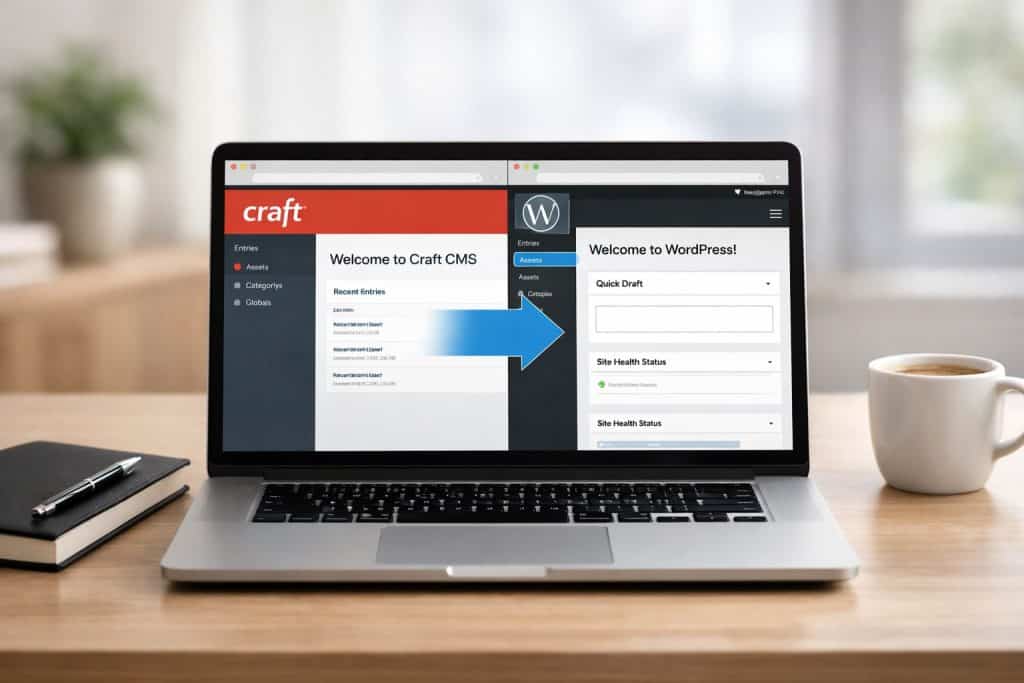
Moving your website from Craft CMS to WordPress opens up access to thousands of plugins, themes, and a larger community of developers who can help you grow your site. Many businesses make this switch to gain more flexibility in managing their content and to take advantage of WordPress’s easier learning curve. Migrating from Craft CMS to WordPress involves transferring your content, settings, users, and design whilst maintaining your search rankings and site functionality.
The migration process requires careful planning to avoid losing important data or damaging your SEO performance. We need to export content from Craft CMS, set up WordPress properly, recreate the design, and ensure all redirects work correctly. The site’s design can remain exactly the same whilst the underlying content management system changes.
This guide walks through each step of the migration process, from initial planning to post-launch maintenance. We’ll cover how to preserve your search engine rankings, set up your new WordPress environment, and handle advanced features like e-commerce functionality.
Key Takeaways
Plan your migration carefully by auditing your current Craft CMS content, users, and settings before starting the transfer process
Set up proper 301 redirects and export your content systematically to maintain your SEO rankings during the switch
Configure security, performance optimisation, and ongoing maintenance after migration to keep your new WordPress site running smoothly
Planning Your Craft CMS to WordPress Migration
Before moving content and features, we need a solid plan that covers everything from cataloguing existing site elements to setting clear goals and building a detailed checklist. Proper preparation prevents data loss and reduces downtime during the transfer.
Auditing the Existing Craft CMS Site
We start by creating a complete inventory of our current Craft CMS site. This means documenting all content types, custom fields, entries, categories, and assets stored in the system.
We should list every page, blog post, and custom entry type with its associated fields. Make note of special features like matrix fields, relationships between entries, and any complex data structures unique to Craft CMS.
Next, we catalogue all media files including images, PDFs, and videos. Record their file sizes, locations, and how they’re organised within the asset management system.
We also need to map out user roles and permissions. Document who has access to what, as this will need to be replicated in WordPress with appropriate user levels.
Finally, we identify custom functionality, plugins, and integrations. This includes payment gateways, forms, APIs, and any bespoke code that powers the site’s features.
We determine which content and features are essential to migrate immediately versus what can be archived or rebuilt later. Not everything needs to move if it’s outdated or unused.
Set a realistic timeline with key milestones. Factor in time for testing, troubleshooting, and training team members on the new WordPress system.
We also need to identify technical requirements like hosting specifications, necessary WordPress plugins, and theme selection. Consider whether we’ll use a pre-built theme or need custom development to match the current design.
Budget allocation matters too. Determine if we’re handling the migration internally or need to hire migration specialists for complex aspects of the project.
Creating a Migration Checklist
A detailed migration checklist keeps us organised and ensures nothing gets overlooked. We break the process into manageable tasks with assigned responsibilities and deadlines.
Our checklist should include:
Pre-migration tasks: Backup Craft CMS database and files, set up WordPress staging environment, install necessary plugins
Content migration: Export entries, import posts and pages, transfer media library, recreate taxonomies
Technical setup: Configure permalinks, set up redirects, implement SEO settings, test forms and functionality
Post-migration: Check for broken links, verify all content displays correctly, train users, update DNS settings
We assign each task to specific team members and set realistic completion dates. Regular check-ins help us track progress and address issues quickly.
Keep the checklist accessible to everyone involved in the migration. Update it as tasks are completed and new requirements emerge during the process.
Preparing the WordPress Environment
Before migrating from Craft CMS, we need to set up a solid WordPress foundation that includes reliable hosting, core software installation, and a safe testing space.
Selecting WordPress Hosting
We need to choose a WordPress hosting service that can handle our site’s requirements. The hosting provider directly affects site speed, security, and overall performance.
Popular hosting options include:
WP Engine – Managed WordPress hosting with built-in security and daily backups
Bluehost – Affordable shared hosting suitable for small to medium sites
SiteGround – Balanced performance with excellent customer support
Kinsta – Premium managed hosting with advanced caching
When selecting a host, we should verify it includes SSL certificates for secure connections. Most providers now offer free SSL through Let’s Encrypt. We also want to confirm the hosting plan supports the PHP version and database requirements for our planned plugins.
It’s important to distinguish between wordpress.com and wordpress.org. The wordpress.com platform is a hosted service with limitations, whilst wordpress.org provides the free, open-source software we’ll install on our chosen hosting.
Installing WordPress and Essential Plugins
Once hosting is active, we can install WordPress through the hosting control panel’s one-click installer. Most hosts make this process simple with automated setup tools.
All-in-One WP Migration or Duplicator for moving content
Yoast SEO or Rank Math to preserve search rankings
Redirection to manage URL changes and prevent broken links
We should also install a caching plugin and security plugin early. These protect the site during and after migration.
Setting Up a Staging Environment
A staging environment lets us test the migration without affecting any live site. This separate copy of WordPress runs on a subdomain or local server where we can work freely.
Many hosting providers include built-in staging tools. WP Engine and SiteGround offer one-click staging creation. If our host doesn’t provide this, we can use plugins like WP Staging or manually create a staging site on a subdomain.
The staging site should mirror our intended production environment. We install the same plugins and configure identical settings to catch potential issues before going live.
Exporting and Migrating Content
Moving content from Craft CMS to WordPress requires extracting Craft fields, content, and assets, then mapping them to WordPress’s structure before importing everything into your new site. We need to handle custom fields, taxonomies, and menus carefully to preserve our site’s organisation and functionality.
Exporting Craft Fields, Content, and Assets
We start by identifying all content types in our Craft CMS installation. This includes entries, custom fields, assets, categories, and tags that make up our site.
Craft CMS stores content in a database that we can export using built-in tools or plugins. We should export our data in formats like XML or CSV files that WordPress can read. Saving content in XML files or CSV format makes the import process much easier.
Our Craft assets, including images and documents, need special attention. We must download all media files from our Craft assets folder and keep track of where they’re used in our content. The folder structure should stay organised to help us reconnect assets to content later.
Custom fields in Craft require documentation before export. We need to note each field’s type, settings, and which content types use them.
Custom post types replace Craft sections and entries. If we have a “Projects” section in Craft, we create a matching custom post type in WordPress. Craft taxonomy, including categories and custom taxonomies, maps to WordPress taxonomy structures.
Navigation menus require manual recreation. We document our Craft menus structure and rebuild them as WordPress menus after content import.
Importing Content into WordPress
WordPress receives our exported content through its built-in importer or plugins like WP All Import. The built-in WordPress importer works well for basic content, whilst WP All Import handles complex custom fields and post types.
We import content in stages: users first, then posts and pages, followed by custom post types. WordPress content appears in the dashboard after each import, where we verify accuracy.
Media files upload to the WordPress assets library either through the importer or manually via FTP. We must reconnect images and documents to their corresponding posts and pages.
Custom fields require Advanced Custom Fields or similar plugins in WordPress. We recreate our field groups to match our mapping document, then import field data using specialised import tools.
Ensuring SEO Preservation During Migration
When moving from Craft CMS to WordPress, we need to protect our search rankings and organic traffic by implementing proper redirects, maintaining our meta data, and keeping all internal links functional.
Implementing 301 Redirects and Permalink Structure
We must set up 301 redirects to tell search engines that our pages have moved permanently to new locations. These 301 redirects transfer authority to the new URL and prevent visitors from landing on error pages.
Before we migrate, we need to document all our current URLs in Craft CMS. We should create a spreadsheet with old URLs in one column and matching new WordPress URLs in another column.
WordPress allows us to customise our permalink structure through the settings panel. We should choose a structure that matches our old URL format as closely as possible. If our Craft CMS used /blog/post-title, we need to configure WordPress permalinks the same way.
We can implement redirects through WordPress plugins or by editing our .htaccess file. The .htaccess method is faster but requires technical knowledge. Most hosting providers also offer redirect tools in their control panels.
Handling Meta Titles and Descriptions
Our meta titles and descriptions directly impact our click-through rates from search results. We need to transfer these exactly as they appear in Craft CMS to maintain our SEO performance.
WordPress stores meta data differently than Craft CMS. We should install an SEO plugin like Yoast SEO or Rank Math before migration. These plugins create proper fields for meta titles and descriptions.
We must export our meta data from Craft CMS and map it to the correct fields in WordPress. Each page and post needs its unique meta title and description preserved. Generic or missing meta data will hurt our search visibility.
After migration, we should verify our meta data appears correctly by viewing our page source code. We can also use Google Search Console to check how our pages appear in search results.
Maintaining Internal Links and Preventing Broken Links
Internal links help search engines understand our site structure and pass authority between pages. Broken links damage user experience and can harm our rankings.
During migration, our internal links often break because they still point to old Craft CMS URLs. We need to update every internal link to match our new WordPress URL structure. This includes links in content, navigation menus, and footer areas.
We can use Google Search Console to monitor crawl errors and identify broken links that search engines discover. Regular checks help us catch problems before they impact our traffic.
WordPress Design, Themes, and Customisation
WordPress offers thousands of ready-made themes and extensive customisation options that make it easier to recreate your Craft CMS design. The platform’s theme system, menu builder, and support for custom post types provide the flexibility needed to match your original site structure.
Choosing and Customising WordPress Themes
We can select from thousands of WordPress themes that match our original Craft CMS design. Free themes work well for basic sites, whilst premium themes offer advanced features and dedicated support.
The WordPress Customizer lets us modify colours, fonts, layouts, and header styles without touching code. Most modern themes include drag-and-drop page builders that simplify design work.
If our Craft site has a unique design, we might need custom WordPress development. Many themes support child themes, which let us make changes without affecting the parent theme’s core files. This approach protects our customisations during theme updates.
Key theme selection factors:
Mobile responsiveness
Page load speed
Regular updates and security patches
Compatibility with popular plugins
Built-in SEO features
Transferring Design and Menus
We need to rebuild our Craft menus using WordPress’s menu system. WordPress menus support multiple locations like header, footer, and sidebar placements.
The menu builder allows us to add pages, posts, custom links, and categories through a simple drag-and-drop interface. We can create nested menus by dragging items slightly to the right under parent items.
WordPress stores menu data separately from content, so we must manually recreate our Craft CMS menu structure during migration. Most themes let us assign menus to specific locations through the Customizer.
Custom CSS can be added through the Additional CSS panel to match specific design elements from our Craft site.
Managing WordPress Taxonomies and Custom Post Types
WordPress includes two default taxonomies: categories and tags. Custom taxonomies let us organise content exactly like we did in Craft CMS.
Custom post types extend WordPress beyond standard posts and pages. We can create post types for portfolios, products, testimonials, or any content structure from our Craft site.
We’ll need plugins like Custom Post Type UI or code snippets in our theme’s functions.php file to register these content types. Each custom post type can have its own taxonomies, fields, and templates.
WordPress requires proper SEO configuration and performance tuning to maintain search rankings after migration. We need to install the right plugins, configure technical SEO elements, and implement caching solutions to ensure the site loads quickly and ranks well.
Installing and Configuring SEO Plugins
We recommend installing either Yoast SEO, Rank Math, or All in One SEO as your primary SEO plugin. Yoast SEO is the most popular option with over 5 million active installations and provides on-page optimisation tools, readability analysis, and schema markup. Rank Math offers similar features with a more modern interface and built-in keyword tracking.
After installation, we need to configure the plugin’s general settings. This includes setting up your site title and meta description templates, connecting Google Search Console, and enabling breadcrumbs. We should also configure social media integration by adding Open Graph and Twitter Card metadata.
The plugin will analyse each page and post for SEO best practices. We need to optimise title tags to include target keywords within 60 characters and write meta descriptions between 150-160 characters. Most SEO plugins provide a traffic light system showing which elements need improvement.
XML Sitemap and Mobile Optimisation
WordPress SEO plugins automatically generate an XML sitemap that lists all pages, posts, and custom post types. We need to submit this sitemap to Google Search Console and Bing Webmaster Tools so search engines can crawl the site efficiently. The sitemap URL is typically found at yoursite.com/sitemap.xml or yoursite.com/sitemap_index.xml.
Mobile optimisation is critical since Google uses mobile-first indexing. We must choose a responsive WordPress theme that adapts to different screen sizes. We can test mobile performance using Google’s Mobile-Friendly Test tool and PageSpeed Insights.
WordPress automatically serves responsive images, but we should also compress images before uploading them. We need to ensure buttons and links are large enough for touch screens and that text remains readable without zooming.
Caching and Scalability Considerations
Caching stores static versions of pages to reduce server load and improve loading times. We should install a caching plugin like WP Rocket, W3 Total Cache, or LiteSpeed Cache. These plugins create cached HTML files that serve to visitors instead of processing PHP code on every request.
We need to enable page caching, browser caching, and object caching for optimal performance. Page caching creates static HTML versions whilst browser caching stores assets like images and CSS files locally on visitors’ devices. Object caching stores database query results in memory.
For scalability, we should consider using a content delivery network (CDN) like Cloudflare or StackPath. CDNs distribute site files across global servers so content loads faster for visitors regardless of location. We also need to optimise the database regularly by removing post revisions, spam comments, and transient data that accumulate over time.
Security, Maintenance, and Post-Migration Support
Your WordPress site needs protection and regular care after migration to stay secure and perform well. We recommend establishing security measures immediately and setting up a maintenance plan to avoid downtime and security gaps.
Implementing WordPress Security Best Practices
WordPress security requires multiple layers of protection to defend against threats. We start by installing a security plugin like Sucuri or Wordfence to monitor malicious activity and block attacks in real time.
Strong passwords and two-factor authentication prevent unauthorised access to your admin area. We also limit login attempts to stop brute force attacks.
Regular security scans detect vulnerabilities before they become problems. Install Akismet to filter spam comments automatically and reduce security risks from malicious links.
We recommend these advanced security measures:
Enable SSL certificates for encrypted data transfer
Keep file permissions properly configured (644 for files, 755 for directories)
Disable file editing in the WordPress dashboard
Use Jetpack for additional security monitoring and automated backups
Implement Web Application Firewall (WAF) protection
Change your database prefix from the default “wp_” to make your site harder to target. Hide your WordPress version number to prevent attackers from exploiting known vulnerabilities.
Ongoing Website Maintenance and Support
Website maintenance keeps your site running smoothly and prevents technical debt from building up. We schedule regular updates for WordPress core, themes, and plugins to patch security holes and improve performance.
Working with a WordPress migration agency or WordPress developer provides expert assistance when issues arise. Professional WordPress support includes database optimisation, broken link checks, and performance monitoring.
We back up your site daily to protect against data loss. Store backups in multiple locations including cloud storage for redundancy.
Test all forms, plugins, and integrations monthly to catch problems early. Monitor site speed and optimise images and code to maintain fast loading times.
Updating and Monitoring After Migration
We check for updates weekly and apply them in a staging environment first. This prevents conflicts from breaking your live site unexpectedly.
Monitor your site’s uptime with tools that alert you immediately when problems occur. Track error logs to identify recurring issues that need attention.
Review security reports regularly to spot suspicious activity. We analyse traffic patterns to detect unusual behaviour that might indicate attacks.
Performance monitoring shows how your site responds under different conditions. Check page load speeds and database query times to identify bottlenecks.
Update your sitemap and resubmit it to search engines after making significant changes. Monitor search rankings to ensure your migration hasn’t negatively impacted SEO performance.
E-Commerce and Advanced Functionality
Moving your online shop requires careful planning to preserve product catalogues, customer records, and payment systems. WooCommerce provides a robust foundation for e-commerce on WordPress that can handle the advanced features you’ve built in Craft CMS.
Migrating Shops and WooCommerce Integration
WooCommerce is the most popular e-commerce plugin for WordPress, powering millions of online shops worldwide. We need to map your Craft Commerce product structure to WooCommerce’s format during CMS to WordPress migration.
Your product types, categories, and attributes must transfer correctly. Simple products typically migrate smoothly, whilst variable products require extra attention to ensure variants maintain their relationships.
We recommend installing WooCommerce before starting the migration process. This allows us to configure payment gateways, shipping zones, and tax settings to match your existing setup. The plugin supports numerous payment processors including Stripe, PayPal, and direct bank transfers.
Ensuring Payment, Product, and Customer Data Transfer
Customer data represents your most valuable asset during migration. We must preserve order histories, customer accounts, and saved addresses without disruption.
Product information requires special attention:
Product images and galleries
Pricing structures including sale prices
Stock levels and SKU codes
Product descriptions and metadata
Payment gateway credentials need reconfiguration in WooCommerce. We never transfer sensitive payment data directly—instead, we reconnect to your payment processors using new API keys.
Order history migration preserves your financial records and customer relationships. Each order must maintain its status, date, items purchased, and associated customer account. We test checkout processes thoroughly before going live to ensure all payment flows work correctly in the new content management system.
Frequently Asked Questions
Moving from Craft CMS to WordPress requires careful planning around content transfer, SEO preservation, and data security. These questions address the most common concerns about maintaining site functionality and search rankings during migration.
What are the primary considerations when migrating from Craft CMS to WordPress?
We need to start by auditing our current Craft CMS website to understand what content and features exist. This includes reviewing all pages, posts, images, and links.
We should identify which pages receive the most traffic and which keywords drive organic visits. This helps us prioritise what content needs special attention during the move.
We also need to map out how Craft CMS features translate to WordPress equivalents. Custom fields, content types, and templates all require planning before we begin the actual migration.
How can one ensure that SEO rankings are maintained during the transition?
We must set up proper 301 redirects from old Craft CMS URLs to new WordPress URLs. This tells search engines that pages have permanently moved to new locations.
We need to preserve all metadata including title tags, meta descriptions, and alt text for images. These elements help maintain our search engine visibility.
We should keep the same URL structure when possible to minimise the number of redirects needed. If we must change URLs, we need to document every change carefully.
What is the best approach for transferring content between Craft CMS and WordPress?
We can export content from Craft CMS in formats like CSV or JSON that WordPress can import. This works well for basic content like posts and pages.
For more complex sites, we may need to write custom scripts that pull data from Craft CMS and format it for WordPress. This approach gives us more control over how content maps between systems.
We should transfer content in stages rather than all at once. Starting with a small section lets us test the process and fix issues before migrating everything.
Are there any tools or plugins that can facilitate the migration process?
We can use general CMS migration tools that support multiple platforms including Craft CMS. These tools automate much of the content transfer process.
WordPress import plugins can handle CSV and XML files exported from Craft CMS. We may need to format the exported data to match what these plugins expect.
How can custom fields and content types in Craft CMS be replicated in WordPress?
We use Advanced Custom Fields (ACF) or similar plugins to recreate Craft CMS custom fields in WordPress. These plugins let us add custom data fields to posts, pages, and custom post types.
We create WordPress custom post types to match Craft CMS sections and entry types. This maintains the same content organisation we had in Craft CMS.
We need to map each Craft CMS field to its WordPress equivalent before starting the migration. Some field types may not have direct matches and require alternative approaches.
What steps should be taken to secure data when moving from Craft CMS to WordPress?
We must create complete backups of both the Craft CMS database and all uploaded files before starting. This gives us a safety net if anything goes wrong during migration.
We should perform the migration on a staging site rather than our live website. This lets us test everything thoroughly without affecting the public site.
We need to update all user passwords after migration and review user roles and permissions. Different systems handle security differently, so we verify that access controls work correctly in WordPress.